
SOLUTION: AVD & WINDOWS 365 IMAGE MANAGEMENT
Every Image Tested. Every Rollout Verified.
And One Click to Roll Back, for AVD, Windows 365 or Both.
FleetCTRL™ manages the full golden image lifecycle for Azure Virtual Desktop (AVD) and Windows 365 from one console. Build an image once and use it for AVD host pools, Cloud PCs or both, with native Azure Compute Gallery objects in your own tenant.
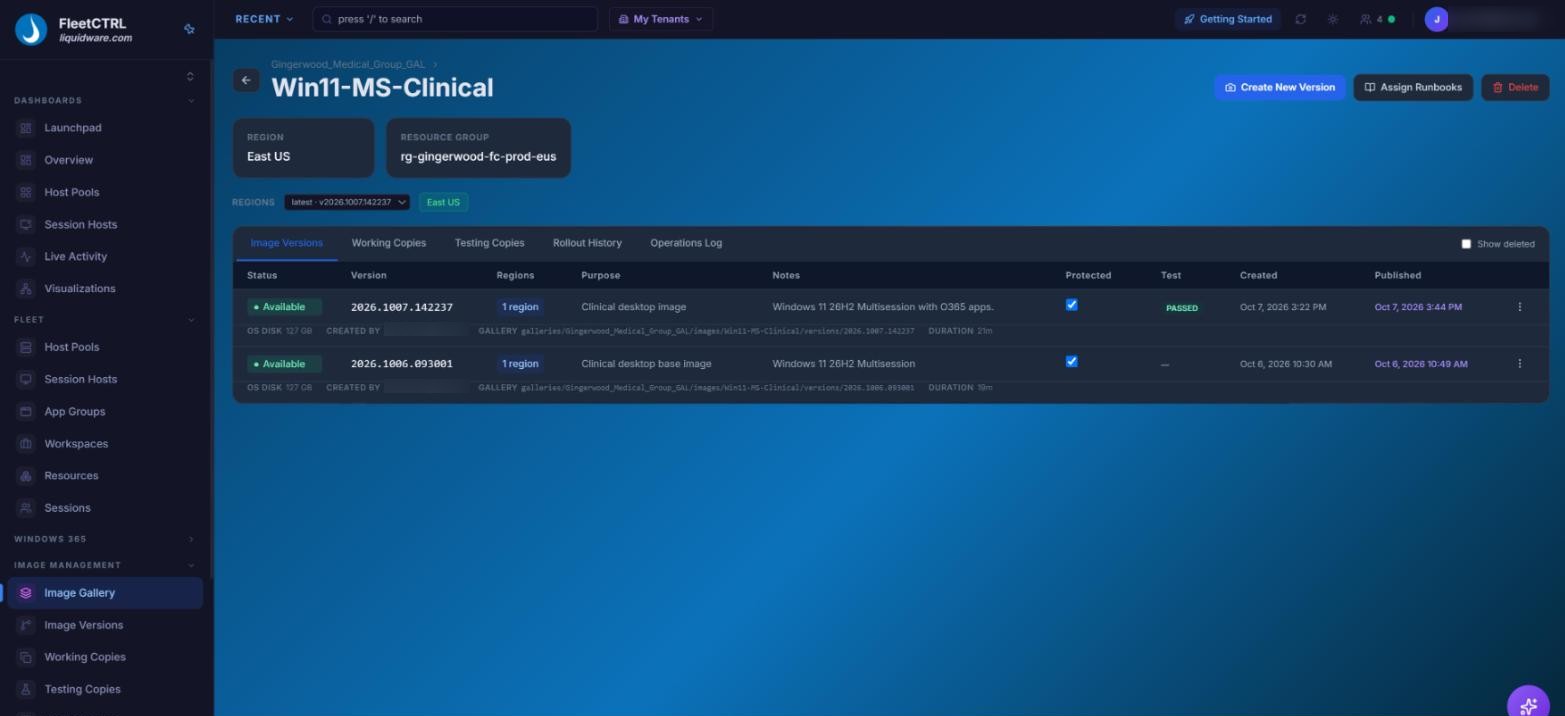
One golden image with its versions, test status and publish dates, in a single FleetCTRL view.
Image Updates Shouldn’t Be
the Riskiest Night of the Month
Every month, golden images have to be patched, tested and rolled out to users who can’t afford downtime. In most AVD environments that still means hand-built test machines, rollouts no one verifies, and a late night when something breaks.
Run Windows 365 as well, and much of that work happens twice. FleetCTRL brings image management for AVD session hosts and Windows 365 Cloud PCs into one console, so your team keeps one organized set of golden images.
Each image goes where it’s needed:

Azure Virtual Desktop
Test the image against the target pool’s own scripts and runbooks, then roll it out in health-verified waves.

Windows 365
Send the image to Windows 365 and roll it out to Cloud PCs in batches. A snapshot is taken first, and users get a gentle heads-up instead of an interruption to their workday.
Both Platforms
Use one golden image for AVD host pools and Cloud PCs, so both platforms run the same build. Or give each platform its own.
FleetCTRL: Image management that checks its own work, from first build to rollback.
Nothing Extra to Stand Up
-
No provisioning servers, streaming network or separate database. Images are native Azure Compute Gallery objects, and FleetCTRL runs in your own tenant.
Testing in the Real Pool
-
A Testing Copy runs the target pool’s own provisioning scripts and runbooks, reports pass or fail for each one, and records a Passed or Failed verdict on the image version before anyone rolls it out.
Rollouts That Verify Every Host
-
A host counts as updated only when it reports Available and matches the target image. Waves, approval gates, drain options and maintenance windows keep 24x7 pools serving users.
Recovery Built In
-
Crash recovery, a circuit breaker and retry for failed hosts handle problems mid-rollout. One-click Rollback reverts updated hosts to the previous version, and autoscaling resumes on its own.
Hosts Stay the Way the Image Left Them
-
Between image updates, drift detection and self-healing fix problems step by step, from an agent restart up to rebuilding the host from its image.
Cleanup You Never Think About
-
A background scanner removes leftover temporary VMs, disks and snapshots every 5 minutes, and soft-deleted image versions can be restored.
Coming From Citrix? It’ll Feel Familiar, Only Easier.
If you’ve managed images with Citrix PVS or MCS, you already know how FleetCTRL works. Working Copy, Testing Copy and Rolling Update map directly onto Maintenance, Test and Production, the stages you use today.
What gets easier: there are no provisioning servers, vDisk store or SQL database to run, and FleetCTRL takes over the testing, rollout checks, recovery and cleanup that used to fall to your team. It’s the fastest way for teams on legacy VDI such as Citrix and Omnissa desktops to get confident with AVD and Windows 365.
What Changes With FleetCTRL
| Stage | With FleetCTRL | The Usual Process |
| Platforms | One console and one image library for AVD and Windows 365 | Separate image processes for each platform |
| Getting an image in | Clone a version, build from a clean Marketplace image, or import an existing VM, snapshot or gallery version. A readiness check blocks unsafe sources, and the source is never modified. | Rebuild by hand, or copy a VM and hope it’s clean |
| Where changes are made | A Working Copy: a temporary VM over RDP that never touches production or the source image | The master VM itself |
| Seal and capture | Snapshot, temporary clone, optional sysprep, publish to Azure Compute Gallery, automatic cleanup, with PowerShell hooks built in | Manual prep, seal and publish |
| Testing | A Testing Copy runs the target pool’s real scripts and runbooks, with a Passed or Failed verdict on the version | A test VM that doesn’t run the pool’s own automations |
| Rollout | Waves, approval gates, drain options and maintenance windows; each host verified Available and on the target image | Reimage and check hosts by hand |
| Problems mid-rollout | Crash recovery, a circuit breaker and retry for failed hosts | An admin steps in |
| Rollback | One click, through the same verified waves; autoscaling resumes on its own | Rebuild hosts on the old image by hand |
| Between updates | Drift detection and step-by-step self-healing | Drift found when users complain |
| Cleanup | Background scanner every 5 minutes; soft-deleted versions can be restored | Orphaned VMs, disks and snapshots |
From Citrix PVS and MCS to FleetCTRL
The same Maintenance → Test → Production stages you know, with fewer moving parts and more of the work automated.
| Stage | Citrix PVS | Citrix MCS | FleetCTRL |
| What you run | Provisioning servers, vDisk store and SQL database, plus the Citrix control plane | Citrix control plane and hosting connection | Nothing added. Native AVD and Azure Compute Gallery in your own tenant |
| Maintenance stage | Maintenance version on a maintenance device | The master VM | Working Copy: a temporary VM over RDP; production and the source stay untouched |
| Seal and capture | Manual prep and seal | Citrix prepares a copy of the master | Snapshot, clone, optional sysprep, publish and cleanup, all automated, with built-in PowerShell hooks |
| Test stage | Test mode on the vDisk version for designated devices | Usually a separate test catalog | Testing Copy runs the real pool’s scripts and runbooks, with a pass or fail result for each |
| Production rollout | New version on next reboot | New image on next reboot | Waves, approval gates and maintenance windows, with every host verified |
| If something breaks | An admin steps in | An admin steps in | Crash recovery, a circuit breaker and retry for failed hosts |
| Rollback | Revert the version and reboot | Point the catalog to the prior image and reboot | One click, through the same verified waves |
| Between updates | Non-persistent reset on reboot | Non-persistent reset on reboot | Drift detection and self-healing |
| Cleanup | Manual vDisk housekeeping | Manual removal of unused versions | Automatic, every 5 minutes |
FleetCTRL rollback rebuilds hosts rather than rebooting onto a streamed disk, so each host takes longer; verified waves keep users on working hosts throughout. MCS includes image definitions and versions with Citrix Image Management (DaaS and CVAD 2402 CU2 / 2411).
Fewer image updates means fewer rollouts. Pair FleetCTRL with Liquidware Essentials and each image carries less: FlexApp™ delivers applications dynamically, so apps don’t have to be baked into every image. ProfileUnity™ keeps user settings and data separate from the image, and works alongside FSLogix or supersedes it with ProfileDisk. Stratusphere™ UX shows how each image version performs for real users, so you know a rollout worked.
Citrix is a trademark of its respective owner. FleetCTRL is in preview; capabilities described reflect the preview release and may change.
AVD & Windows 365 Image Management: Frequently Asked Questions
Can one image be used for both Azure Virtual Desktop and Windows 365?
Yes. FleetCTRL manages images for AVD session hosts and Windows 365 Cloud PCs from the same console. Use one golden image for both platforms or keep a separate image for each.
Can I import my existing master image?
Yes. You can import an existing Azure VM, managed-disk snapshot or Azure Compute Gallery image version, and the source is never modified. It must be workgroup-joined and never registered with AVD, so many teams with domain-joined masters start from a clean or sysprepped build instead.
How is a new image tested?
A Testing Copy is built for the target host pool and runs that pool’s real provisioning scripts and runbooks. It reports pass or fail for each script, and your admin records a Passed or Failed verdict on the image version.
What happens if a rollout goes wrong?
Crash recovery and a circuit breaker stop problems from spreading, and failed hosts can be retried. One-click Rollback reverts updated hosts to the previous image version through the same verified waves.
Is rollback as fast as a reboot?
Not per host. FleetCTRL rebuilds hosts rather than rebooting onto a streamed disk. Because rollback runs in verified waves, users stay on working hosts while it happens.
Where are images stored?
As native Azure Compute Gallery objects in your own Azure tenant. FleetCTRL is not a vendor-hosted service. Windows 365 Cloud PCs keep running in Microsoft’s service under your existing licenses.
Ready to Automate
Your Image Updates?
The FleetCTRL preview opens in Q1 2027.
Apply now to be first in line.