
SOLUTION: AVD AUTOMATIONS & RUNBOOKS
AVD Automation You Can Trust to Run.
Runbooks and Event-Driven Scripts, With Admins in Control.
FleetCTRL™ runs the routine work of an Azure Virtual Desktop (AVD) estate for you: runbooks, scripts that fire on events, autoscaling and automatic cleanup. Nothing runs that you haven’t set up, every automation is checked before it runs, and every action is audited in your own tenant.
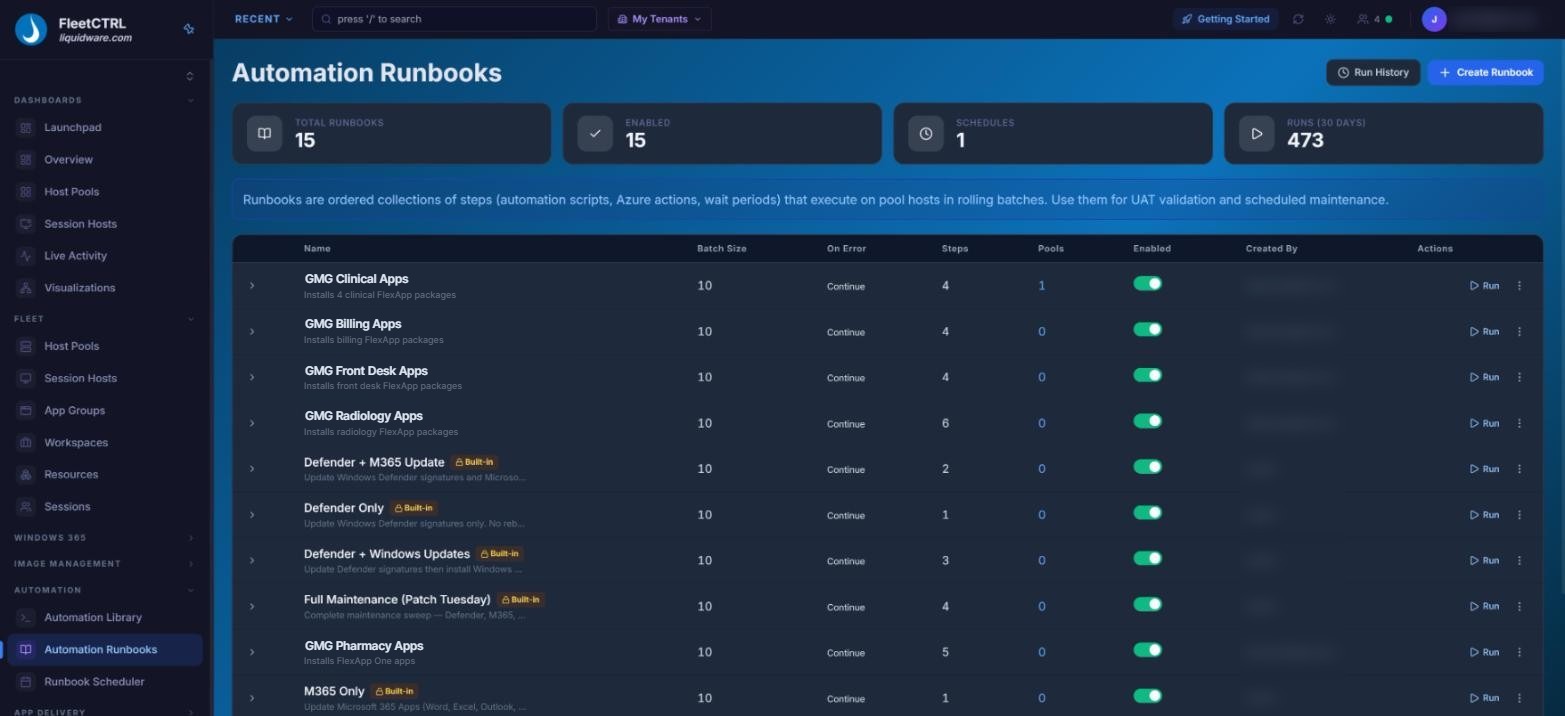
FleetCTRL Automation Runbooks: batch size, error handling, steps and pools for each runbook, including built-in runbooks for Defender, Windows and Microsoft 365 updates.
Routine AVD Work Shouldn’t Depend
on Someone Remembering It
At enterprise size, AVD runs on routine work: scripts before and after every image capture, setup on every new host, capacity changes through the day and cleanup after every test. On native AVD, teams often stitch it together themselves with Azure Automation accounts, Logic Apps or scheduled tasks. It works until someone forgets a step, and then it’s hard to tell who ran what.
FleetCTRL builds the hooks, runbooks, input checks and audit trail into one console. Routine work runs at the right moment, and every run is accountable.
Automation in FleetCTRL works three ways:

Runbooks Tied to Your Host Pools
Runbooks belong to your host pools, so each pool runs the automation it was built for. When a new image is tested, Testing Copies run the pool’s real provisioning scripts and runbooks and report pass or fail for each one before rollout.

Scripts That Fire on Real Events
PowerShell scripts run at the right moment in the image lifecycle: pre-sysprep, post-capture and five post-deploy triggers: On Join, On Provision, On Working Copy Ready, On Start and On Demand. Nobody has to remember them.
Automation That Runs Itself
Rolling updates run in waves with approval gates and maintenance windows. Autoscaling adds and removes capacity on its own, and you can preview a policy before it takes effect. Self-healing keeps hosts correct, and leftover resources are cleaned up automatically.
FleetCTRL: Automation with guardrails,
so your admins stay in control.
Tested Before Production
-
Testing Copies run a pool’s real scripts and runbooks against a new image and report each result, so automation problems surface before rollout.
Nothing Runs With Missing Inputs
-
The automation dialog stops when a required parameter is missing, and Execute stays disabled until every required input is in place.
Approved Choices, Enforced
-
Approved regions, images and hardware are enforced on the server side, and only approved options are offered, so automation builds only what you’ve signed off on.
Any Admin, Not Just Azure Experts
-
Role-based access gives each admin just the role they need, so more of your team can safely run automation, not just your Azure experts.
Every Action Audited
-
FleetCTRL’s tamper-protected audit log names the admin and role, or the schedule, behind every manual and automated action, including ones that never become an Azure API call. Actions are mirrored in your Azure Activity Log under an identity you created and can revoke, entries are recoverable, and logs export as JSON for your SIEM.
Cleans Up After Itself
-
A background scanner removes leftover temporary resources every 5 minutes, and stuck working and testing copies are cleaned up automatically. No orphaned VMs quietly running up the bill.
Coming From Citrix? Keep the Discipline, Lose the Script Sprawl.
Teams on legacy VDI such as Citrix and Omnissa desktops usually automate with admin-built scripts, GPOs and scheduled tasks. FleetCTRL builds the hooks, scheduling, input checks and audit trail into the console.
It’s the discipline you already trust, with less to maintain and a clear record of every run.
What Changes With FleetCTRL
| Situation | With FleetCTRL | The Usual Process |
| Script needed before or after capture | Pre-sysprep and post-capture hooks run it automatically | Run by hand, if someone remembers |
| Setup on a new host | Post-deploy triggers run it On Join, On Provision or On Start | A GPO, scheduled task or custom script |
| New image vs. your automation | Testing Copies run the pool’s real scripts and runbooks and report each result | Found after rollout |
| Required input missing | Execute stays disabled until every required input is in place | The script fails partway through |
| Leftover temporary resources | Removed every 5 minutes | Orphaned VMs and disks on the bill |
| Who can run it | Any admin with the right role | Whoever wrote the script |
| Record of what happened | Every action audited, with the admin or schedule named | Pieced together from logs |
Pair FleetCTRL with the rest of the suite and automation goes further. FlexApp™ keeps apps out of the image, so there’s less to script into every build. ProfileUnity™ keeps profiles portable as hosts come and go. Stratusphere™ UX shows how changes land with users. CommandCTRL™ gives real-time endpoint support when a user needs help now.
FleetCTRL runs where you need it: in your own Azure tenant or on-premises, not as SaaS, and it’s GovCloud compatible. Automation runs against your own Azure estate, and on session hosts FleetCTRL uses only Microsoft’s AVD agent, with no additional agent to deploy. It also manages Windows 365 Cloud PCs from the same console. Explore FleetCTRL.
Citrix is a trademark of its respective owner. Runbooks, event-driven scripts, autoscaling and self-healing described here apply to AVD. FleetCTRL is in Preview; capabilities described reflect the Preview release and may change.
Scripts can run pre-sysprep and post-capture in the image capture pipeline, and after deployment through five post-deploy triggers: On Join, On Provision, On Working Copy Ready, On Start and On Demand.
The automation dialog stops, and Execute stays disabled until every required input is in place, so nothing runs half-configured.
Only within the rules you set. Rolling updates run with approval gates and maintenance windows, each pool can be set to Off, Monitor or Auto-Heal, and you can preview a scaling policy before it takes effect. Once a trigger or policy is in place, FleetCTRL follows it, and every action is audited.
Before an image version is rolled out, Testing Copies run the target pool’s real provisioning scripts and runbooks and report pass or fail for each one.
FleetCTRL’s tamper-protected audit log names the admin and role, or the schedule, behind every action, manual or automated. Actions are mirrored in your Azure Activity Log and export as JSON for your SIEM.
The runbooks, event-driven scripts, autoscaling and self-healing described here apply to AVD. For Windows 365, FleetCTRL runs Cloud PC actions such as restart, resize, snapshot and reprovision one at a time or in bulk, and some can be scheduled.
FleetCTRL is announced. The Preview opens in Q1 2027 by application, subject to approval, and general availability is planned for 2027.
Ready for AVD Automation
You Can Trust to Run?
The FleetCTRL Preview opens in Q1 2027.
Apply now to be first in line.